AI Meme Video Ideas From October 28, 2026
A late-October collection grouped by visual payoff, from a fridge-camera reaction to a wide stunt and two performance scenes.
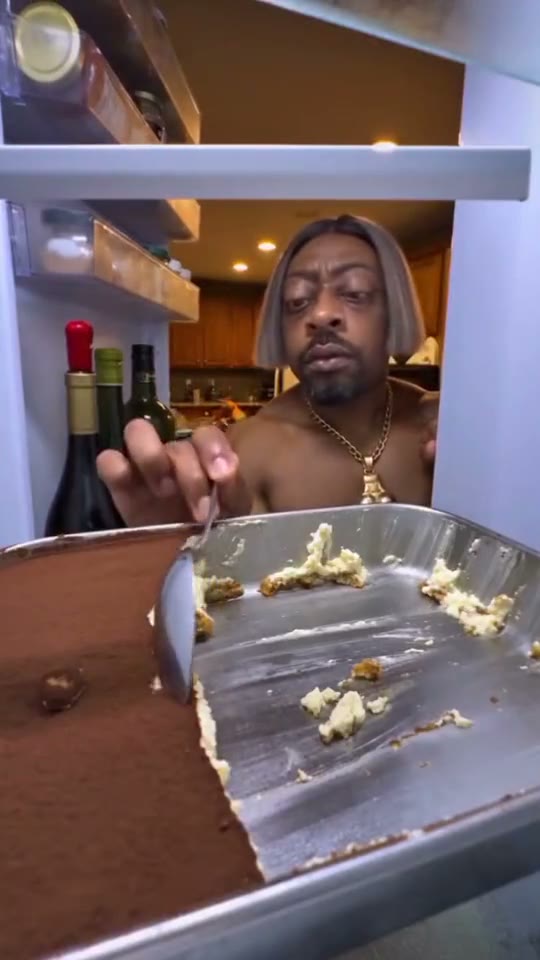
For a tight reaction, start in the fridge
Tiramisu Fridge AI is a good study in framing. The door and tray establish the scene before the face appears clearly. Choose a front-lit photo and watch the reaction before trimming. A pet can change the tone with no need to add another prop.
Compare the example clips before you generate
Open Tiramisu Fridge examples, Desert Car Jump examples, and Hotel Lobby examples and look at the preview files before committing to a scene. They make useful comparisons because the subject occupies different parts of the frame, and each leaves different room for the action. The dimensions and running times below describe those previews. The generation panel is where you check the settings and quote for your own run.
Tabby Cat (540 × 960, 10 seconds)
The fridge version needs a clear face or muzzle and a readable tray. Use it if a quick reaction is the strongest part of your source. For your opening, look for the reference feature you can actually see in the photo. Put your own source beside the preview at phone width and check the difference between a face-led and movement-led idea. If the main detail is already hard to pick out in a still, compare another source or a preview with more separation before generating.
White Crossover (540 × 960, 9 seconds)
A seated pose and open space make the desert jump easier to plan. Keep the highest point of the stunt in the intended crop. To plan a fridge reveal, desert jump or mic handoff, check the frames just before and after the corresponding movement. Note which object or part of the subject first approaches the crop. Keep the last usable frame on either side as a potential trim point.
Microphone Duet (600 × 1066, 30 seconds)
Choose the microphone idea if you want an exchange. Mark who takes the first beat and where you can cut to a reply. Work backward from one scene matched to the crop you want to publish. Find a frame that could serve as the cover or the start of the next shot. Check it at the intended viewing size. If the important detail disappears there, test the crop in the edit first.
For a wide effect, keep both halves of the joke
In Desert Car Jump AI, the quiet person and the moving vehicle both need room. UNO Card Car AI uses a hand-held reveal instead. Pick the first if you have a good seated pose and the second if you can show an unobstructed hand gesture.
Shortlist the ideas your own material can support
Start with the photo or clip you already have permission to use. Decide whether its strongest feature is an expression, a prop, an outfit or a visible full-body pose. Give the first test to the scene that uses that feature earliest. If a different idea would require a new photo, put it in a second column and write down exactly what the new source needs to show.
Choose the fridge if the face reaction is all the source can support. Save the car scene for a clear seated figure, and consider the booth if you want two editorial beats with different performers. Play each possible opening in the destination frame before picking which idea to build.
For this scene, make the difference between a face-led and movement-led idea your first check. Open the file at the same width as your draft and see which part of that detail remains clear. If the sample and your source make that check difficult, try a closer reaction scene or a new wider source. Choose material you have permission to use for the finished audience. With two people in an edit, approve the sources separately and identify which shot introduces each person.
Choose the shortest version that still reads
- Write down what your photo gives you: a sharp face, a seated pose, or a visible hand. A tight reaction, a wide jump and a prop reveal use different parts of the source.
- For a fridge reaction, pick the moment after the door opens. For a desert stunt, keep enough width for the person and vehicle. For a card reveal, check the prop before the cut to the car.
- If you prefer a group joke, compare a Tiny Desk close-up and Hotel Lobby handoff. Choose where your lead stays easiest to recognize, then plan any second person as a separate edit.
- Compare your two finalists at the preview stage before generating. Note the crop, clearest action and audio plan. Keep a clean export when you want to add different music for each destination.
Two briefs you can paste into your edit notes
Use these as shot notes. For a generation, carry over the part that describes one visible action and match it to the scene already selected. Keep your text cards, edit points and soundtrack on separate tracks. This makes it easy to compare a tighter cut or a different ending without asking the model to rebuild material that already works.
First pass
Match a close portrait to a fridge reaction, a visible seated pose to the desert jump, or two separately planned shots to a mic exchange.
Name the single result you want the test to prove. Save one screenshot from each option at the point where the difference is obvious. If you can explain the improvement in a single sentence, you can choose between the two. If both pass, judge the amount of finishing work you would still need to do.
One focused revision
Keep one visual cue in the opening and one at the payoff. Play the chosen draft without audio before deciding which example to make.
When a wide stunt is picked from a source with no posture detail, test a closer reaction scene or a new wider source and keep the rest of the setup steady. Compare the same action in both takes, using stills if movement makes the difference hard to see. A working first version is also a reference for your next draft. Save its source, chosen scene and short note together.
For a group joke, choose one focal performer
Compare a lead-centered Tiny Desk band with the compact Hotel Lobby booth. Both can be edited with separate reaction shots if you want other people to appear. This is a dated collection of ideas; check the Pavo trend catalog for the examples currently available.
For a first project from this roundup, pick between a tight face and a wide movement. A clear face can carry the fridge reaction. A seated subject with space overhead makes a better candidate for the desert jump. Compare the two takes in preview before choosing.
What to check at the opening, action and ending
Before the action
Use the reference feature you can actually see in the photo to check the difference between a face-led and movement-led idea. Compare the generated frame with your source at the same viewing size. Check that the feature you care about is visible before the subject turns, the camera moves or a prop enters. If it is already missing, work on the input or framing first. A later adjustment has more to build on when the opening already looks right.
At the main beat
Around a fridge reveal, desert jump or mic handoff, look at the same stage of the action in each candidate. If a wide stunt is picked from a source with no posture detail, try a closer reaction scene or a new wider source. Describe what changed in visible terms: a hand enters earlier, the lead stays separate from the background or the final pose still reads. Write down which option passes your own brief, even if the other looks more striking in isolation.
After the move
Find one scene matched to the crop you want to publish and decide whether it is a usable final frame or a cut point. Play the full clip at normal speed with the sound muted, then turn the sound back on and play it again. The first pass tells you whether the picture explains the action. The second pass lets you hear whether music or dialogue arrives early enough to make sense without masking the reply. If an action only looks awkward when stepped through frame by frame, judge it in the actual export before rebuilding the shot.
Check the quote and prepare the finished cut
Open the Tiramisu Fridge editor, choose the actual scene and settings, and read the quote shown before submitting. You can check Pavo AI Video pricing for plan details. After submission, use the task state to find the result. Review a completed take before starting another one. If you do need another attempt, write down the one change you are testing.
When more than one result passes, keep the one that needs the least additional work in your intended edit. Save the approved source, export and settings with names you can tell apart. If you used a local video as a starting point, keep the original clip and any permitted audio separately so you can still change the cut later.
Give the exported file one last check for the difference between a face-led and movement-led idea. If the shot needs another pass, keep the exported baseline so the next change is easy to judge. For a separate worked example or a more focused workflow, read Make a Tiramisu Fridge AI Snack-Reveal Clip.
Common questions
Which example works when I only have a close portrait?
Try a fridge or lead-performance scene with a clear close-up. A wide vehicle jump depends more on posture and the space around the subject, so it is useful to prepare a wider source for that option.
How do I compare a stunt and a performance without rendering both?
Watch each preview on mute and freeze the main beat. Ask whether your photo shows the parts that action needs. Choose the one you can read clearly before comparing settings or quotes in the editor.