Babydoll AI Dance Video Generator
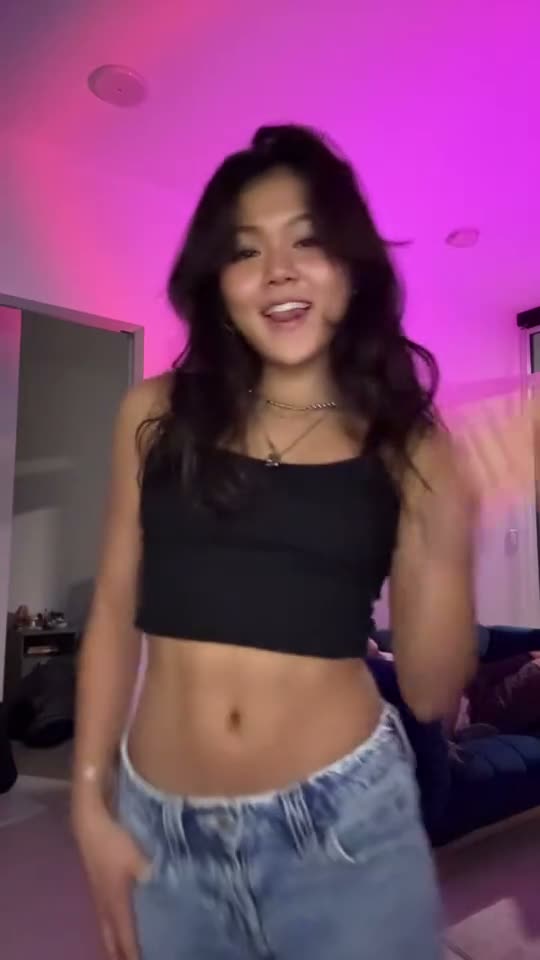
Pair a sharp outfit with a relaxed two-step across an open floor. Choose a duo or solo example, upload a photo, and give the dance your own style.
- Create right in your browser
- Upload your own photos
- Failed renders return credits
- Start with a ready-to-use prompt
- Ready for TikTok, Reels and Shorts
The clip is a preview. Pavo AI Video generates from your photo and prompt.
Use photos you own or have permission to edit. No impersonation, intimate deepfakes, or sexualized depictions of children. Content rules · Report misuse
About the trend
What is the Babydoll Dance AI trend?
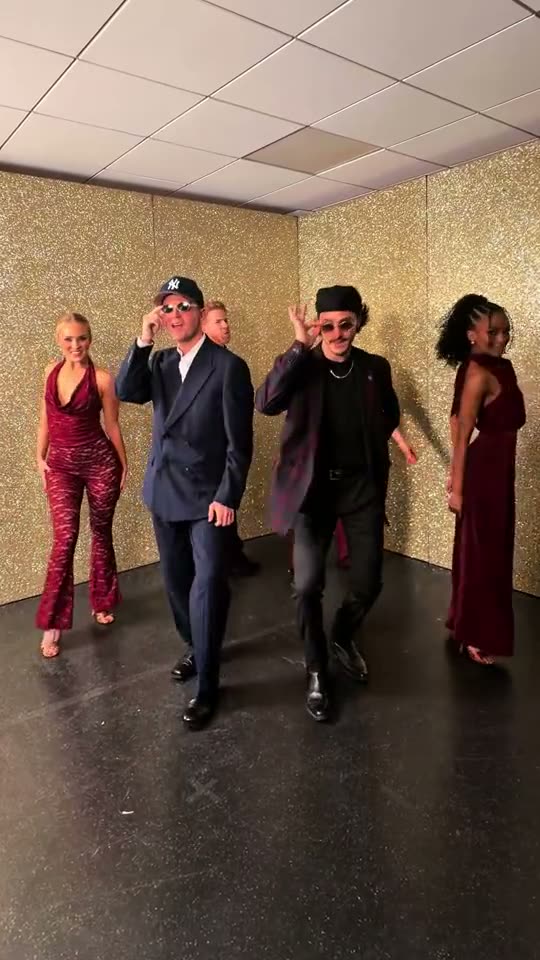
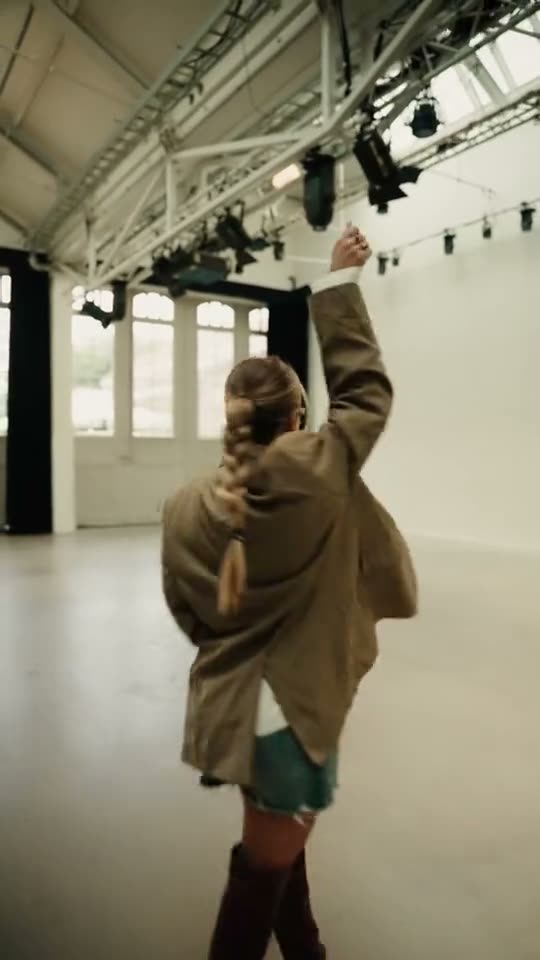
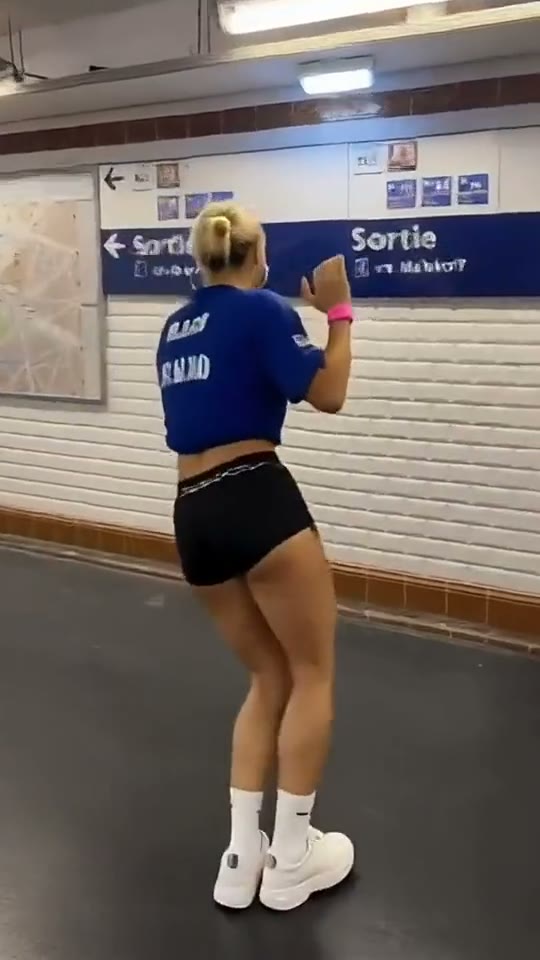
The moves travel across the floor in a simple rhythm. Tailored outfits and an open room let the footwork carry the scene.
- Create right in your browser
- Upload your own photos
- Start with a ready-to-use prompt
- Ready for TikTok, Reels and Shorts
How to Make a Babydoll Dance AI Video
Use the example already loaded in the editor, or choose a different version before adding your photo.
- 1
Pick a Video
Hover over a video to preview it. Choose Recreate to start with its prompt in the editor.
- 2
Add Your Photo
Upload a clear photo of your subject. Edit the prompt if you want to change the action, angle or setting.
- 3
Generate and Download
Review the settings and credit quote before generating. Open the finished result to download your video.
Pick Your Babydoll Dance AI Example
Choose a scene to load its video and prompt into the editor. Your uploaded photo stays in place when you switch examples.
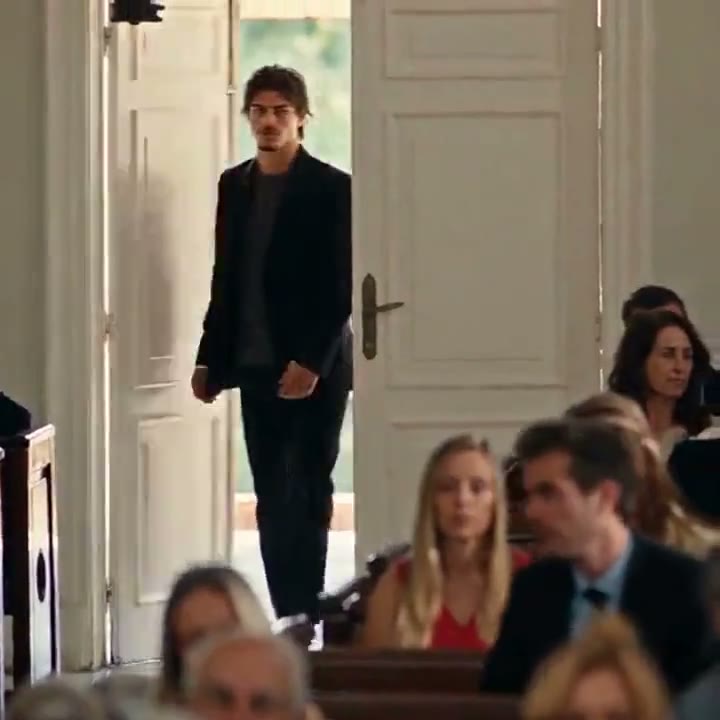
The Original
Video length · 20s
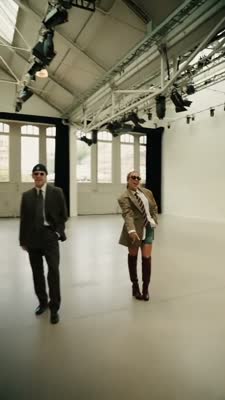
Studio Hall
Video length · 20s
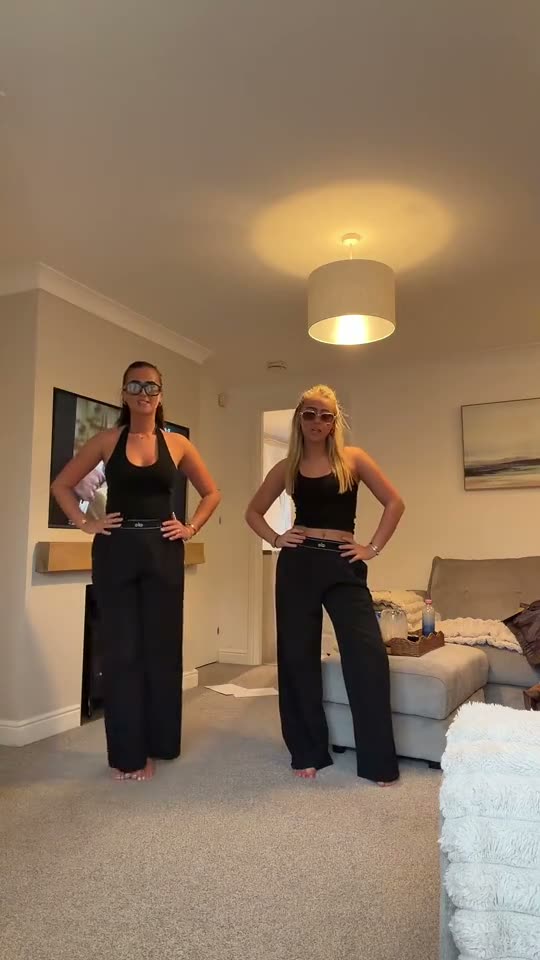
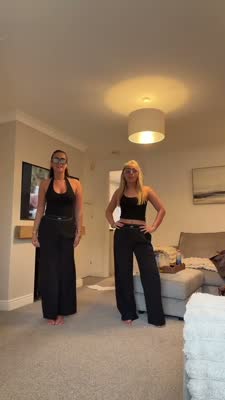
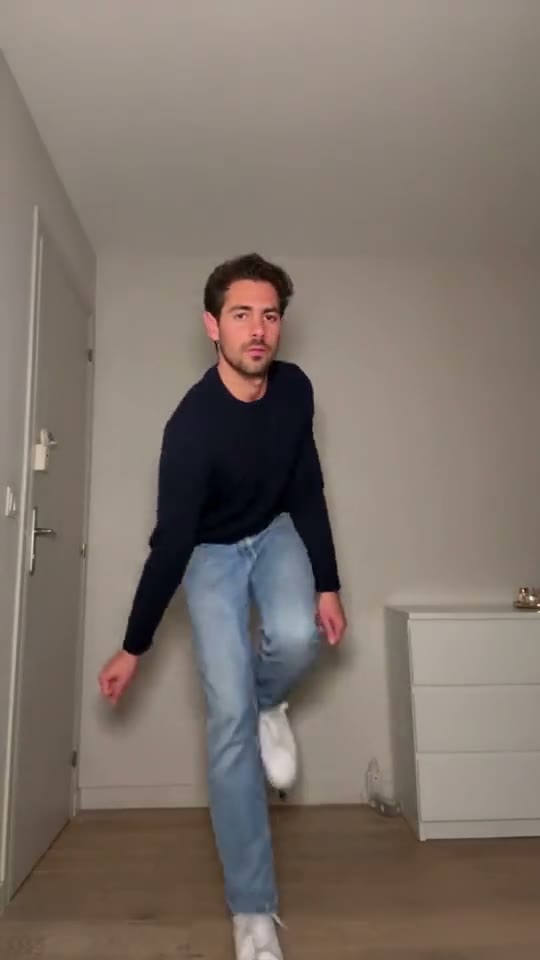
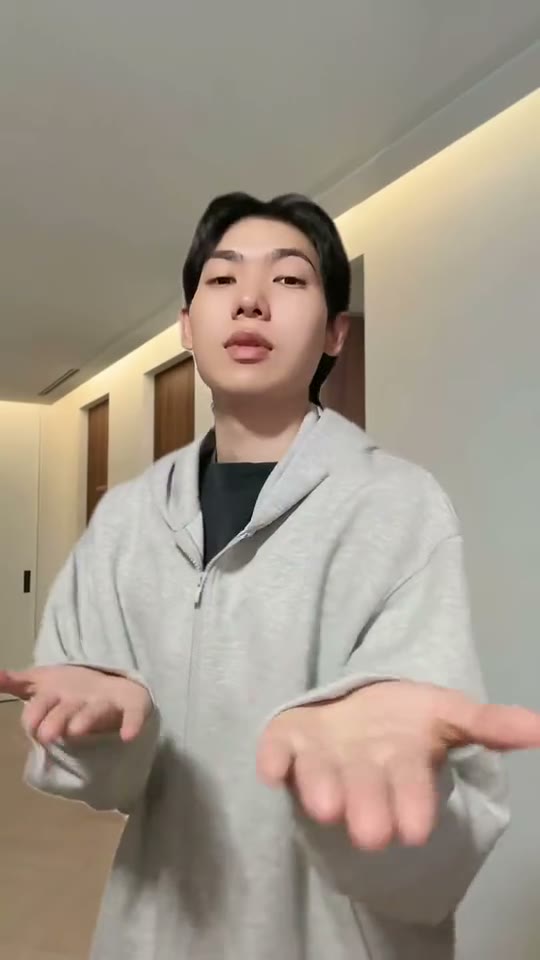
Living Room Duo
Video length · 20s
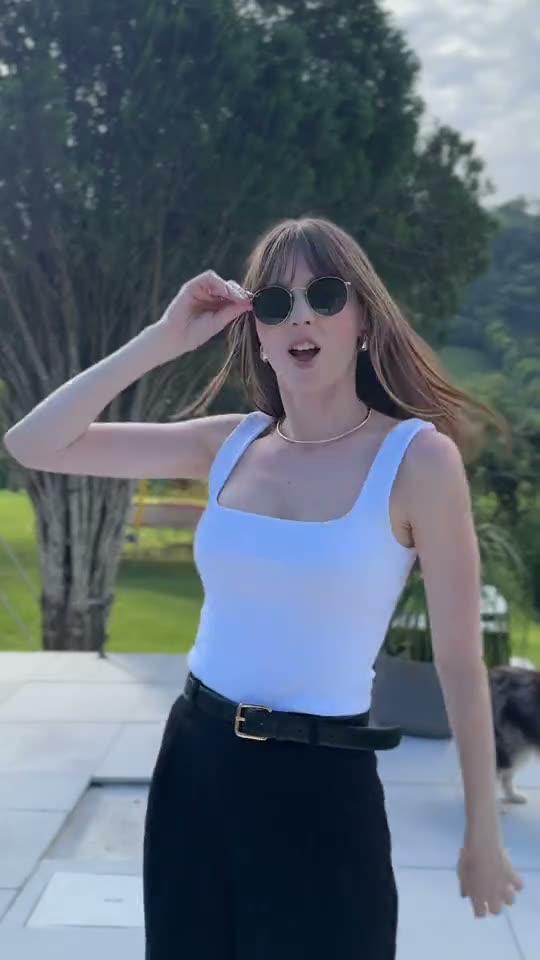
Poolside
Video length · 20s
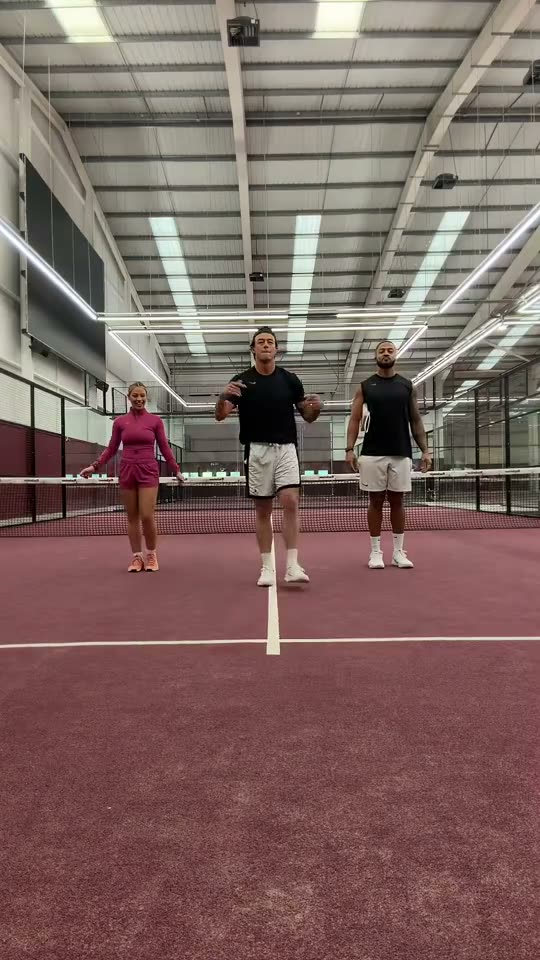
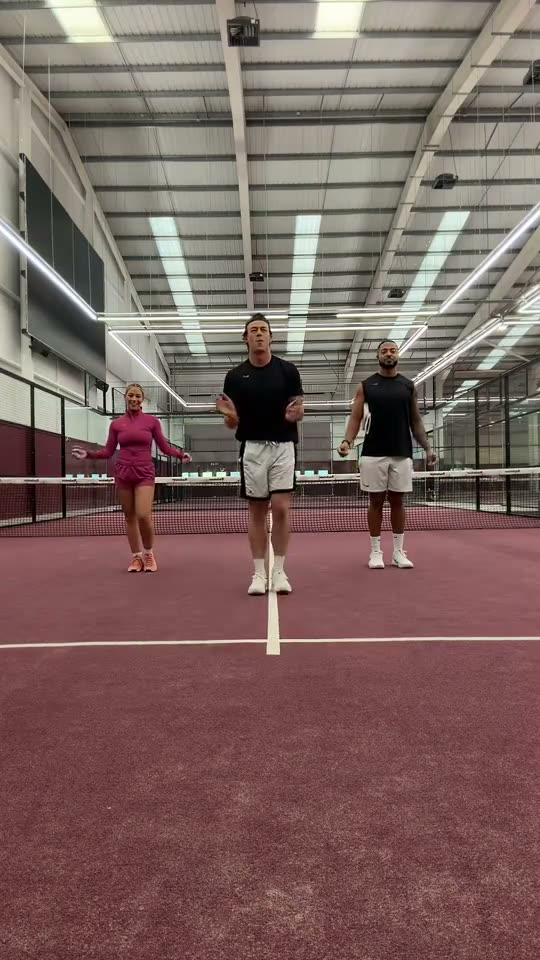
Padel Court
Video length · 20s
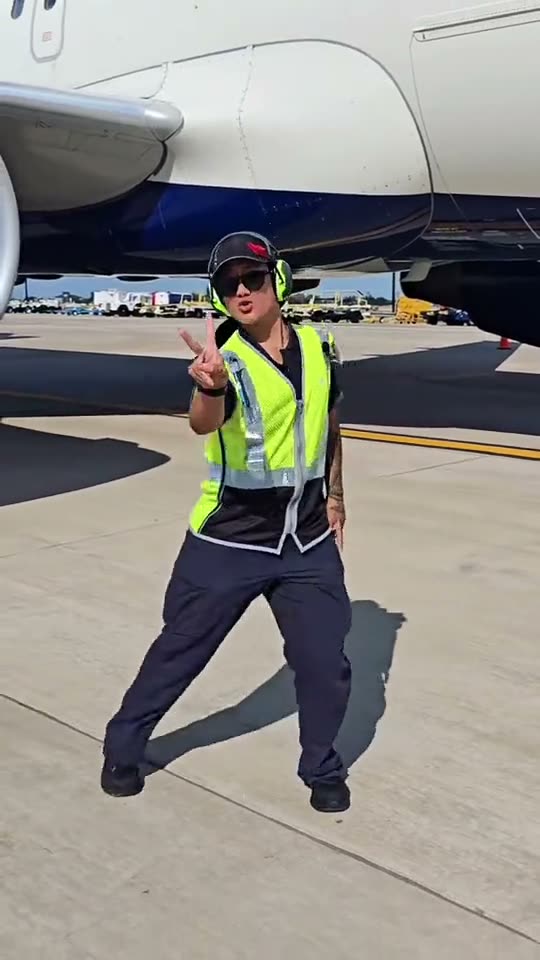
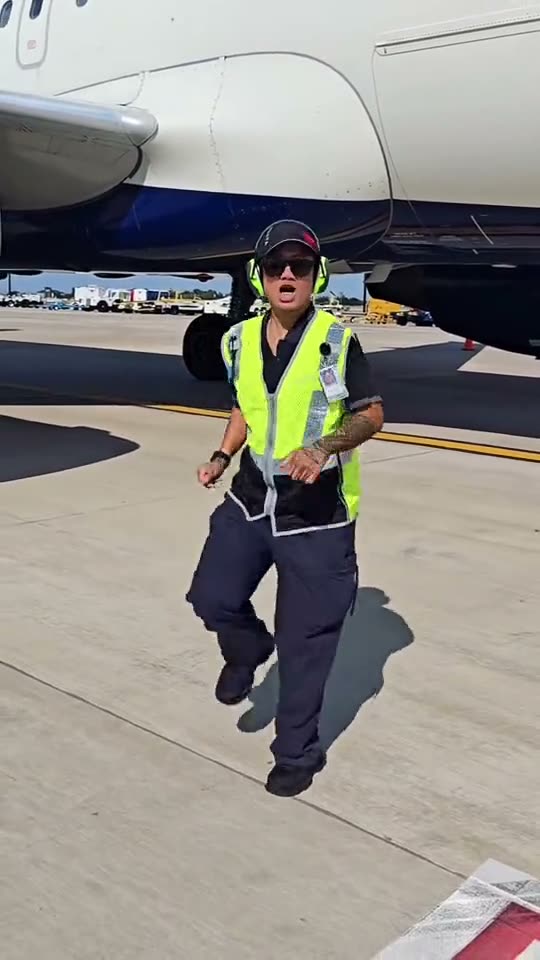
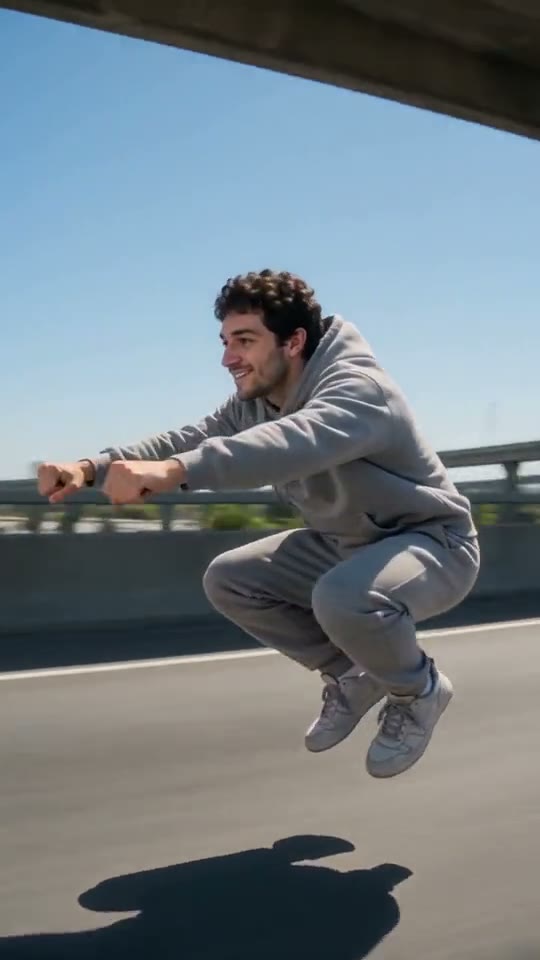
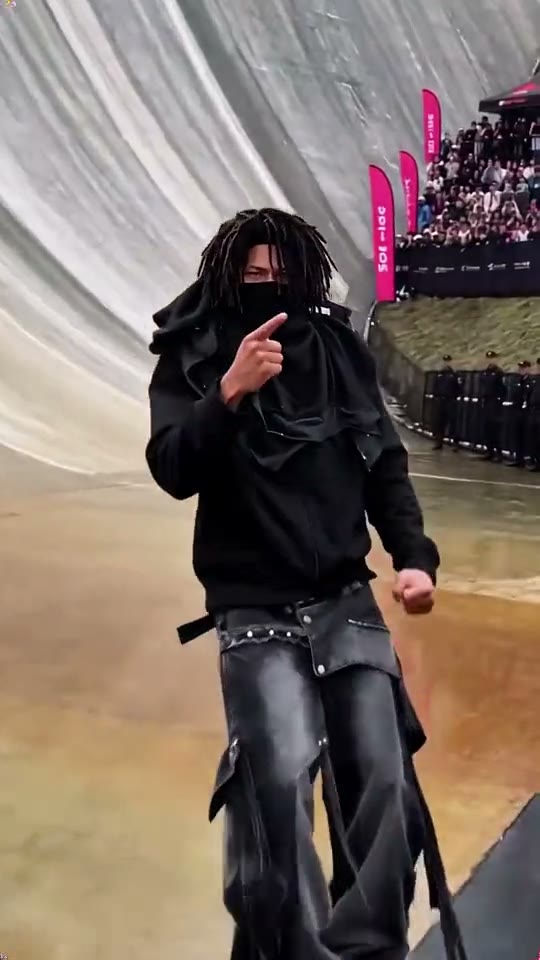
Airport Ramp
Video length · 20s
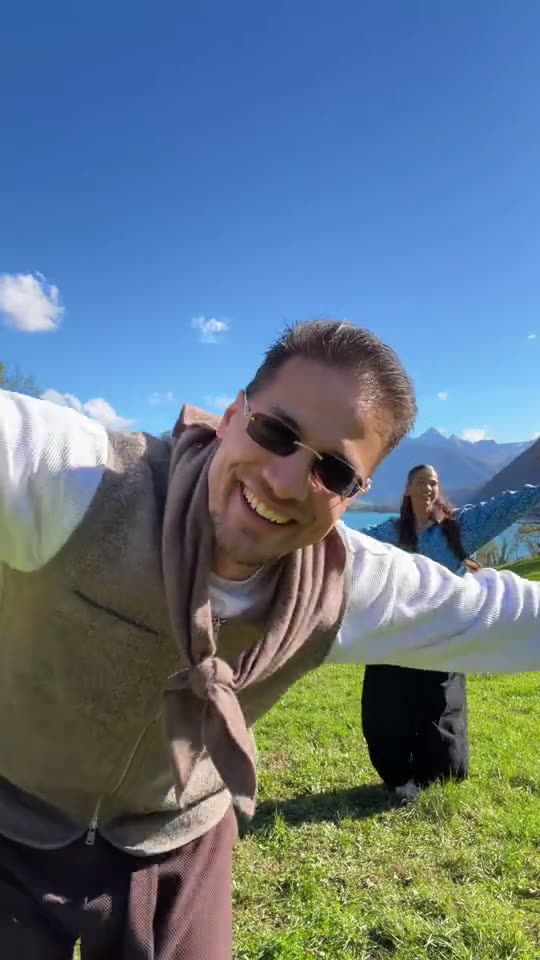
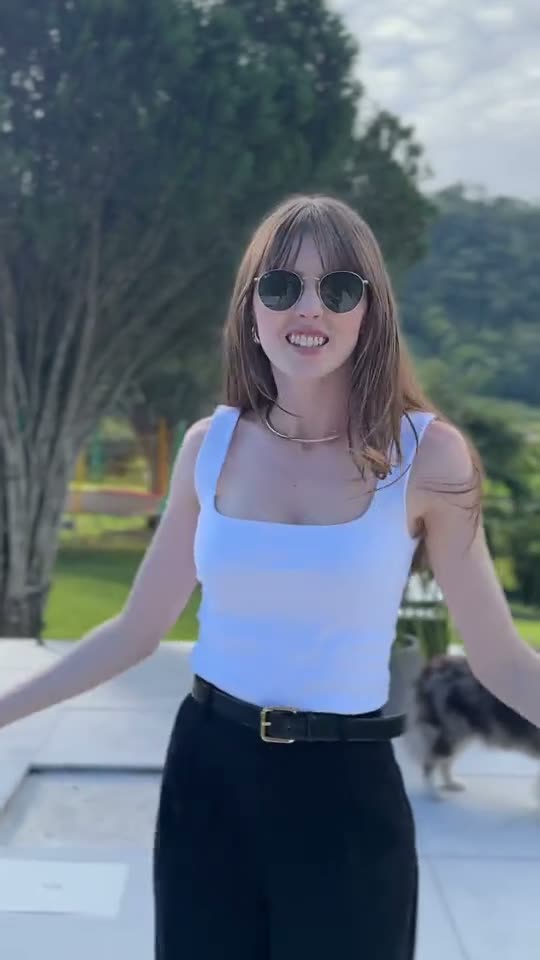
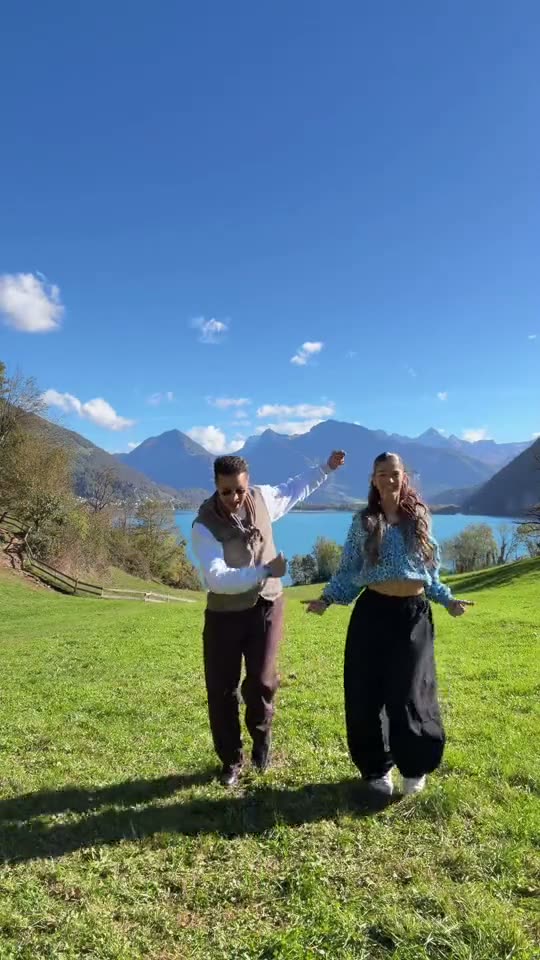
Mountain Lake
Video length · 19s
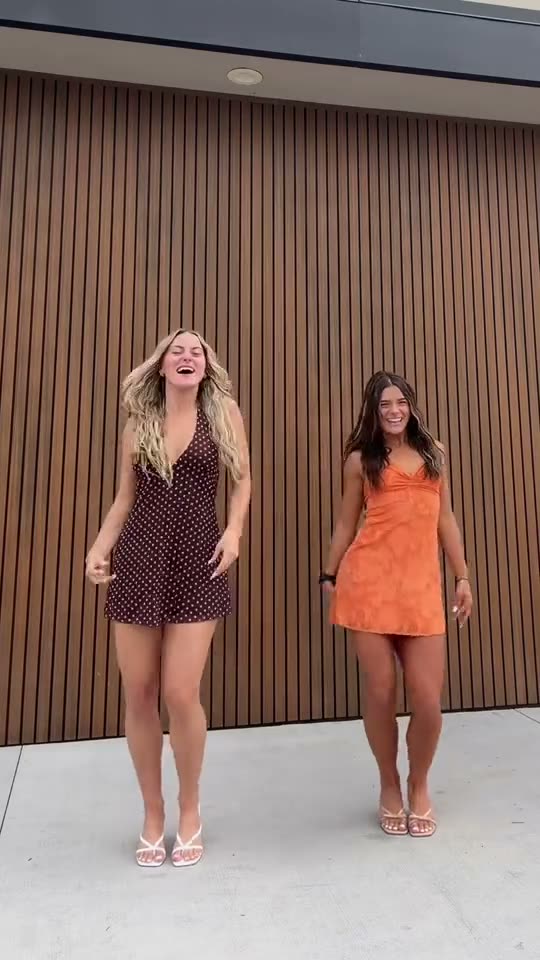
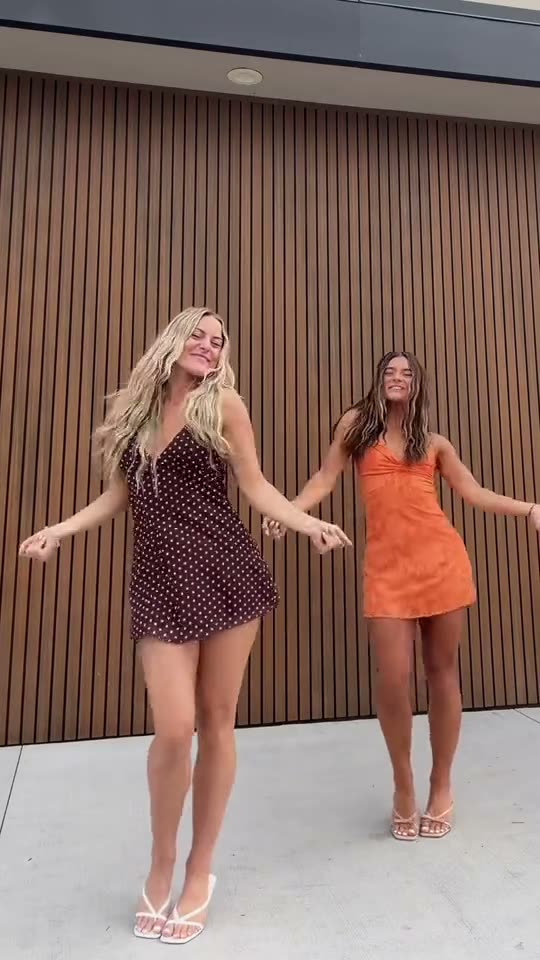
Summer Dresses
Video length · 20s
Tips for a Better Babydoll Dance AI Video
Pick a full-body image with clear feet and enough space for the dancer to move sideways.
Match the framing
Use a photo with enough space around the subject for the movement in your chosen scene.
Keep the subject visible
Choose an evenly lit photo with the face or main subject in focus.
Use photos you can share
Upload your own photo or a photo you have permission to use.
Why Pavo AI Video
Make Babydoll Dance AI in Pavo
Start from an example, add your own photo and refine the prompt in the same editor.
Try it with your photosPrompt included
The example’s prompt is filled in when you choose Recreate. You can adjust it before generating.
Pick a trend you like
Preview the examples and load the direction behind the clip into the generator.
People, pets and products
Start with a clear photo of whatever should appear in the scene.
Simple from draft to download
Choose a clip, add a photo and generate in one editor. Your finished video appears in results.
See the cost up front
The cost depends on the selected model and settings. Review the quote in the editor before generating, especially after changing a model, duration or resolution.
Nothing to install
Use the generator in your desktop or mobile browser.
| Workflow comparison | Ready-made trends | Text to video | Manual editing |
|---|---|---|---|
| Starting point | Ready-made trends | Your own idea | Raw footage |
| Prompt included | Prefilled and editable | Write your own | — |
| Subject photo | Add a reference photo | Model dependent | Manual editing |
| See the cost up front | Quote before you generate | Quote before you generate | — |
Want to Write Your Own Prompt?
How it worksPricing
Credits for Every Project. Pick What Fits.
Pay once for an eligible single video or buy a credit pack for multiple projects. Plans are also available for recurring use. The editor shows the quote for your settings before you generate.
- Credit Packs
- Quote before you generate
- One-time
- Create every month
Check a Video Quote
Open an example and choose your settings to see the quote.
More Trending Memes
Explore another scene to make with your own photo.
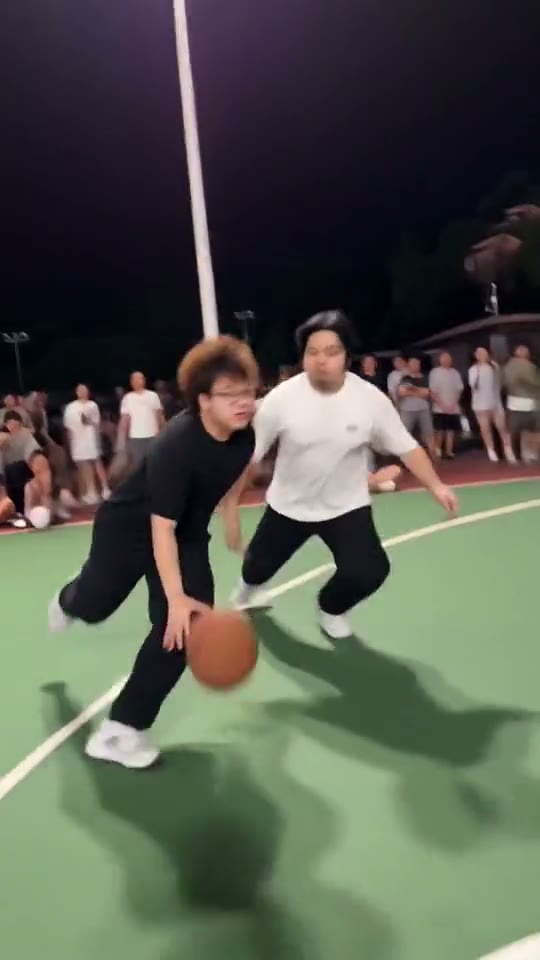 New
AI Dunk
Break past the defender and finish with a big dunk.
Comedy · 2 examples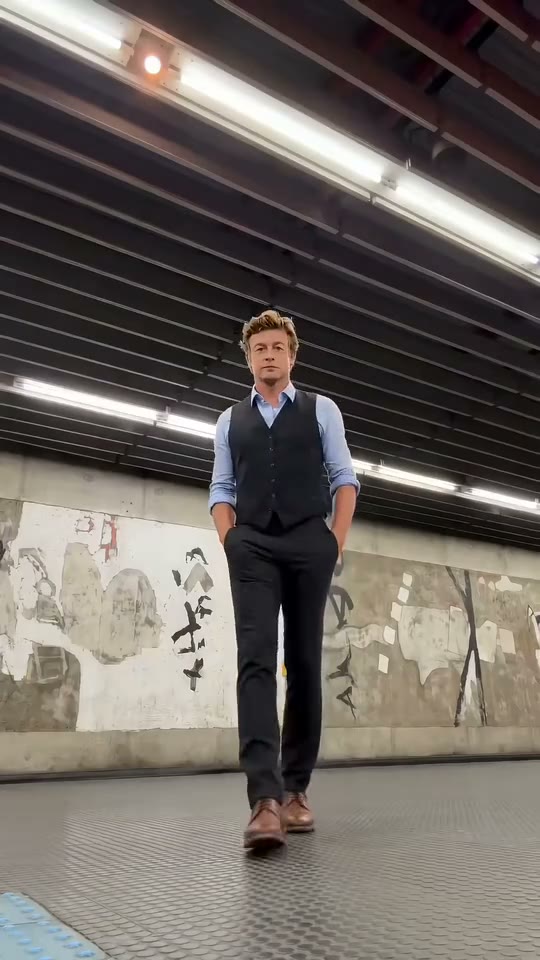 New
Patrick Jane AI
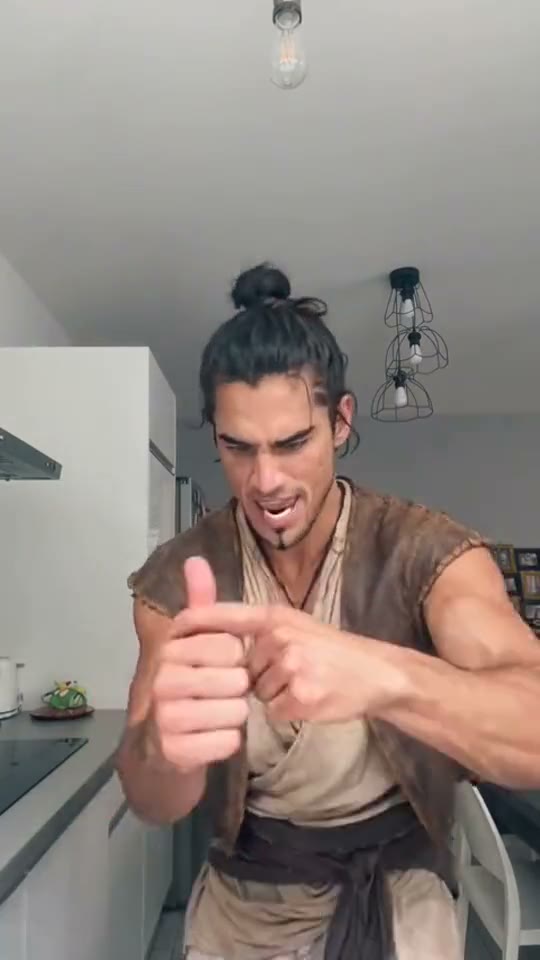
A sharp suit meets wonderfully awkward dance moves.
Dance · 6 examples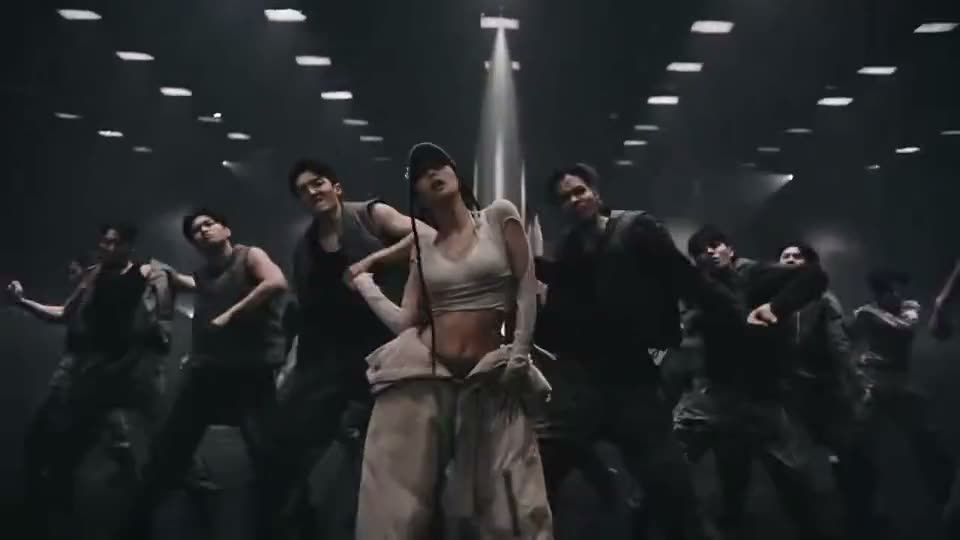 New
Like Jennie AI
Take the lead in a synchronized dance lineup.
Dance · 8 examples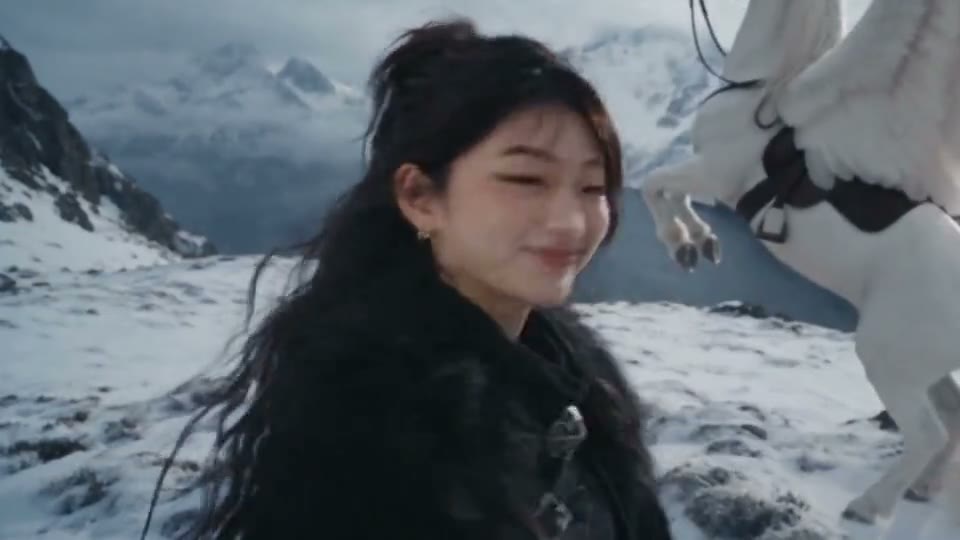 New
24 Card Trend AI
Reveal two number cards and jump to a new scene.
Effects · 8 examples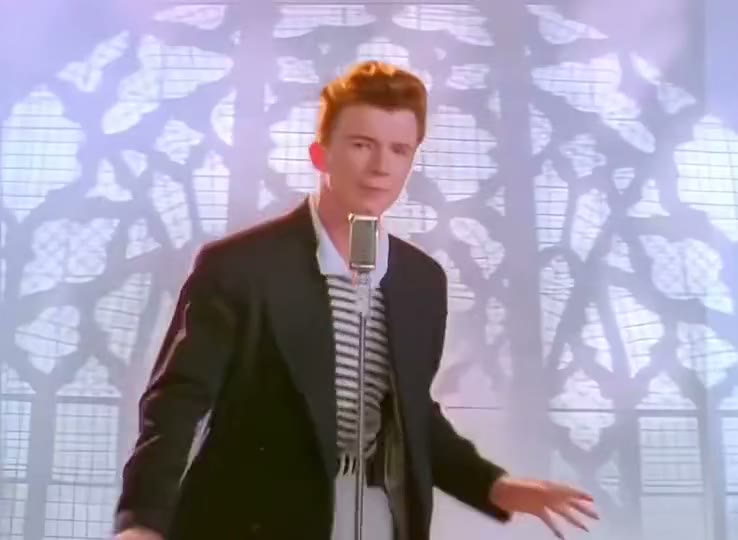 New
Rick Roll AI
Step into the music-video prank everyone knows.
Dance · 8 examples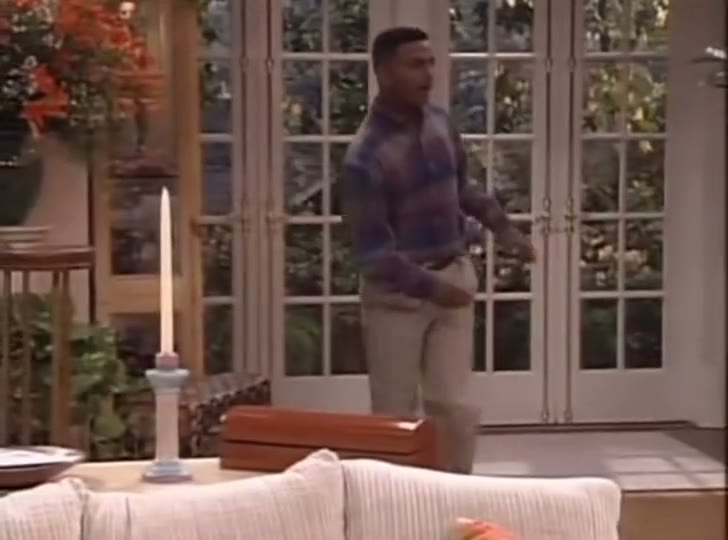 New
Carlton Dance AI
Try the bouncy arm swings of the Carlton dance.
Dance · 8 examples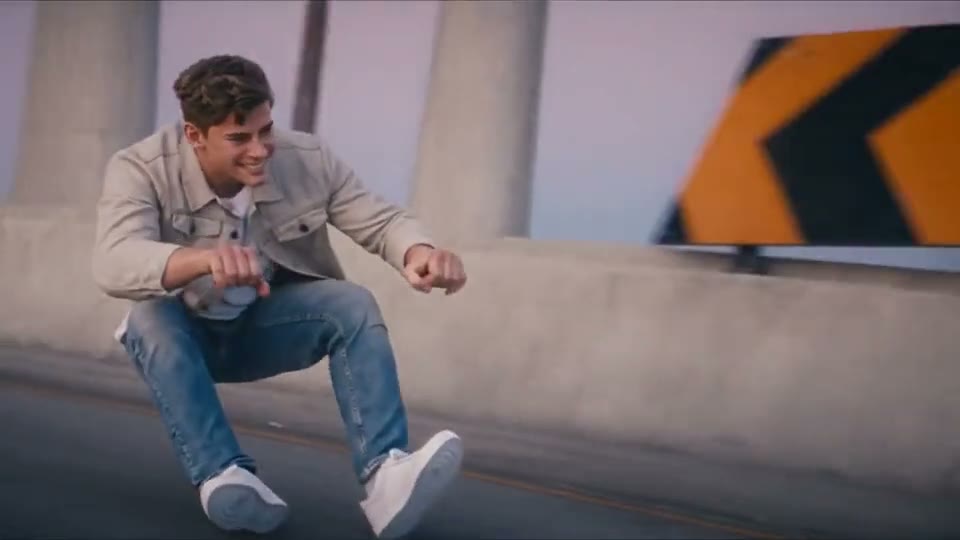 New
Crazy Frog AI
Pantomime a wild ride on a bike nobody can see.
Comedy · 8 examples New
Alors On Danse AI
Play the tune while your partner cheers you on.
Duo & Couples · 8 examples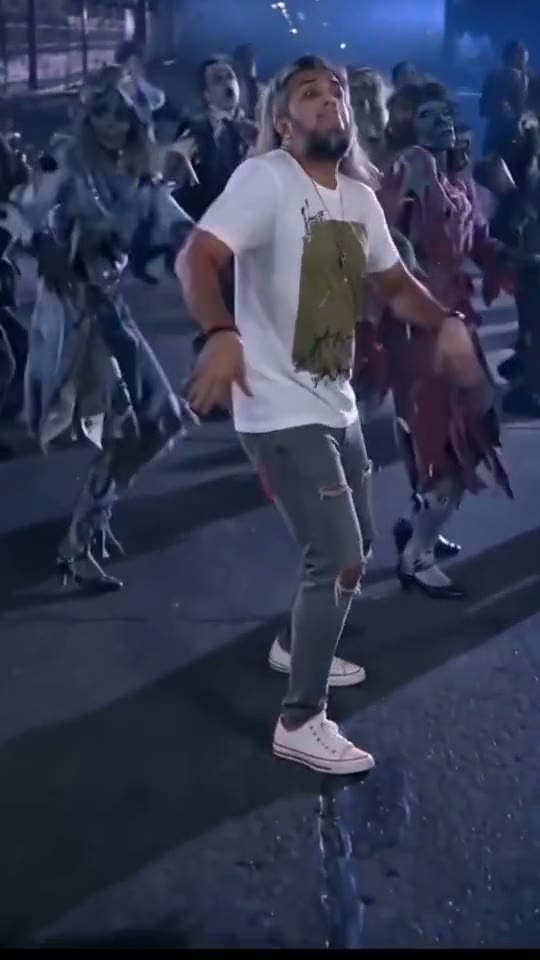 New
Thriller Dance AI
Take center stage in a spooky group dance.
Dance · 8 examples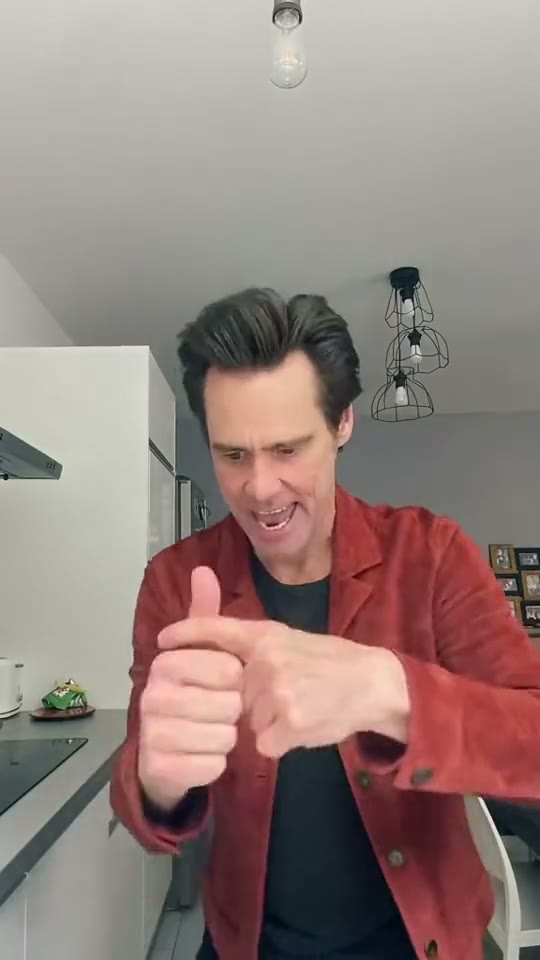 New
Jim Carrey Dance AI
Turn emphatic gestures into a quick comedy routine.
Dance · 7 examplesBabydoll Dance AI Questions
Which example should I choose for Babydoll Dance AI?
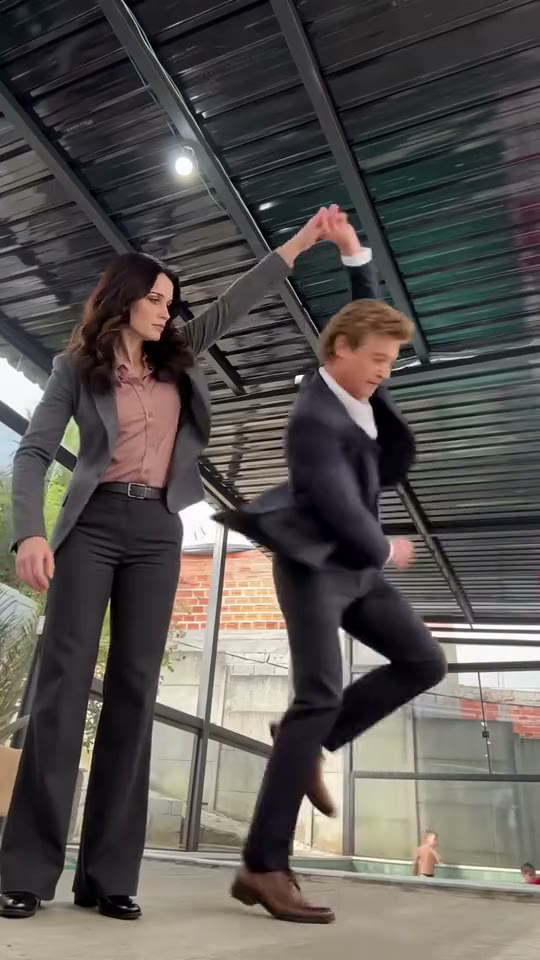
For a duo, describe which dancer starts on each side and have them travel in the same direction. An open floor helps keep both performers visible.
Do I need video editing skills?
Choose a clip, add a photo and generate in one editor. Your finished video appears in results.
Can I use my own images?
Yes. Pick a model that supports reference images and upload a file you have permission to use. The editor shows the supported options.
How much does a generation cost?
The cost depends on the selected model and settings. Review the quote in the editor before generating, especially after changing a model, duration or resolution.
What happens if my generation fails?
Check the task status and your credit history. If a confirmed technical error left credits deducted, contact support to have those credits restored.
How can I download a finished creation?
Open the completed result in your workspace and use its download action. You can also find past creations in your history.
Trending This Week
Ready to Make Your Babydoll Dance AI Video?
Pick your example, upload a photo and check the quote before generating.