Rick Roll AI From a Photo: Time the Reveal
Choose a dance take, give the performer space, and edit a short reveal people can understand with or without sound.
Build the reveal around one cut
Pick the moment your audience will recognize the setup. A plain opening card can cut straight into the familiar performance framing. Preview a human and a deliberately stylized take in the Rick Roll AI editor. An unexpected subject works best when the movement itself remains easy to read.
Compare the example clips before you generate
Watch the Rick Roll examples once through, then scrub the preview to see where you would pause. Begin with the clip that frames the feature you want viewers to remember. On a second pass, compare how much space each take leaves around that feature as the subject moves. These times and dimensions describe the preview files; check the generator for current settings.
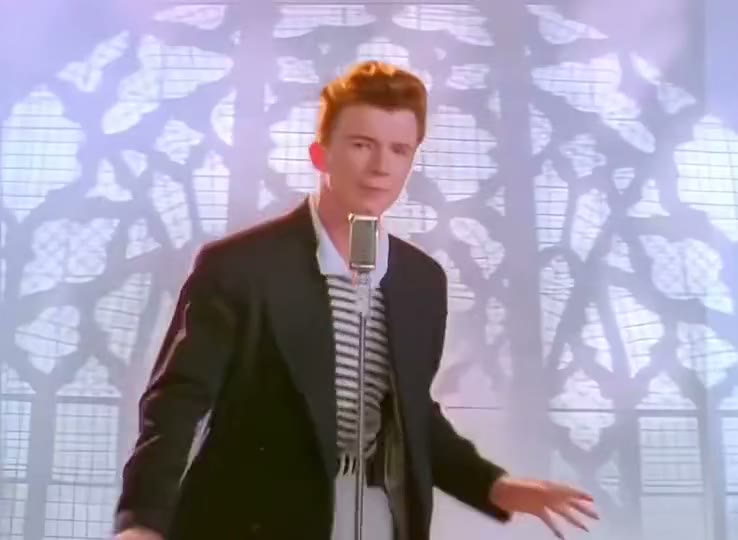
The Original (738 × 540, 20 seconds)
Use the reference to find the gap between an ordinary setup and the first visible dance cue. For your opening, look for an ordinary-looking setup before the reveal. Put your own source beside the preview at phone width and check the performer’s hands and first step. If the main detail is already hard to pick out in a still, compare another source or a preview with more separation before generating.
Blue Polo (540 × 960, 10.1 seconds)
A simple blue shirt leaves the arms and posture to carry the reveal. See how much setup a viewer needs before that gesture lands. To plan the first unmistakable dance gesture, check the frames just before and after the corresponding movement. Note which object or part of the subject first approaches the crop. Keep the last usable frame on either side as a potential trim point.
Robot (960 × 540, 15.3 seconds)
A robot version makes the character the first joke. Hold the final pose long enough for the dance reference to register as the second one. Work backward from one clear settled beat after the joke. Find a frame that could serve as the cover or the start of the next shot. Check it at the intended viewing size. If the important detail disappears there, test the crop in the edit first.
Keep the hands and posture visible
A clean chest-up photo is useful for an expression-led take. If the frame shows a full dance step, include both hands and shoes in your source. The editor uses the example as a starting point, so keep its prompt for a first pass and check the displayed quote before generating.
Prepare the first photo around the action
Put the photo beside the preview and look at what each frame asks the model to show. A face-led opening can work from a close portrait. If the scene then shows footwork, a large arm movement or an important object beside the body, start with the uncropped original or take one wider photo at a similar camera height. Save that file separately so you can go back to the same input after a failed test.
For a group-chat joke, open on a plausible reaction shot and let the dance supply the reveal. Use your own lead and a setup that makes sense without impersonating a sender or hiding a destination link. Ask a friend to watch the muted cut and say which gesture gave the joke away. Trim the setup if they never get there.
For this scene, make the performer’s hands and first step your first check. Open the file at the same width as your draft and see which part of that detail remains clear. If the sample and your source make that check difficult, try a more readable opening gesture and a shorter title card. Choose material you have permission to use for the finished audience. With two people in an edit, approve the sources separately and identify which shot introduces each person.
Set up a reveal in four edits
- Decide which cue will make the performance recognizable on mute. A familiar pose or an immediate dance gesture can do the work even if your chosen sound arrives later.
- Select a take that keeps your subject recognizable at the first clear movement. For a close shot, use a face with open eyes. For a step back, use a wider photo with hands and shoes in view.
- Make the first clip with the example’s movement, then trim your title card and reveal as a separate edit. Keep enough of the performance for one complete gesture.
- Show the muted draft to one person. Ask what moment made the joke clear. Move the cut closer to that beat and select platform audio only after the picture timing works.
Two short prompts to try with the selected scene
Start with the direction supplied by The Original or the example you picked. For a revision, write what should be visible in shot order. Preserve one subject feature and one main action, then stop. Keep the same scene and source on a prompt test so the result tells you whether the new direction helped.
First pass
Start with a neutral look at the camera. Show both hands during the first dance gesture, then hold one settled beat after the reveal.
Read the brief once against the preview and decide which detail does the most work. The first look should tell the viewer who is there, and the move should read at normal speed. If your prompt introduces a second setting, a different person or an extra camera move, take that instruction out for this first pass.
One focused revision
Keep the camera fixed and shorten the opening hold. Bring the recognizable gesture into the frame before the subject turns away.
When the reveal depends entirely on the music, test a more readable opening gesture and a shorter title card and keep the rest of the setup steady. Compare the same action in both takes, using stills if movement makes the difference hard to see. A working first version is also a reference for your next draft. Save its source, chosen scene and short note together.
Share the joke without the soundtrack doing all the work
Check the cut on mute and remove any long setup that does not help the payoff. If adding music, use an option you can share on the intended platform. A private message to someone who knows the joke can use a simpler caption than a public clip that needs to disclose the AI edit.
One reveal to try is an ordinary “quick update” title card followed by the first readable dance gesture. Show it to someone with the audio off. If they only recognize the joke once the song starts, make the performer or background cue clearer.
What to check at the opening, action and ending
Before the action
Use an ordinary-looking setup before the reveal to check the performer’s hands and first step. Compare the generated frame with your source at the same viewing size. Check that the feature you care about is visible before the subject turns, the camera moves or a prop enters. If it is already missing, work on the input or framing first. A later adjustment has more to build on when the opening already looks right.
At the main beat
Around the first unmistakable dance gesture, scrub a few frames in both directions. If the reveal depends entirely on the music, locate the first bad frame and check whether something crosses the subject there. A problem that starts when the hand crosses the face calls for a different correction from a photo that already lacks the right profile. Test a more readable opening gesture and a shorter title card. Hold the other inputs steady and repeat the same pause on the new output.
After the move
Find one clear settled beat after the joke and decide whether it is a usable final frame or a cut point. Play the full clip at normal speed with the sound muted, then turn the sound back on and play it again. The first pass tells you whether the picture explains the action. The second pass lets you hear whether music or dialogue arrives early enough to make sense without masking the reply. If an action only looks awkward when stepped through frame by frame, judge it in the actual export before rebuilding the shot.
Check the quote and prepare the finished cut
Open the Rick Roll editor, choose the actual scene and settings, and read the quote shown before submitting. You can check Pavo AI Video pricing for plan details. After submission, use the task state to find the result. Review a completed take before starting another one. If you do need another attempt, write down the one change you are testing.
Keep the clean export and make a separate copy for sharing. Check the cover frame and watch the final copy at normal speed. Add a soundtrack or a caption in the edit where you have the rights to use it. Keep any disclosure appropriate to your destination and audience with the version you send, especially when a recognizable person appears in a fictional performance.
Give the exported file one last check for the performer’s hands and first step. If the shot needs another pass, keep the exported baseline so the next change is easy to judge. For a separate worked example or a more focused workflow, read Fix AI Video Face Drift, Odd Hands and the Wrong Person.
Common questions
Do I need the original track for the edit to work?
A recognizable scene and clean timing can carry the reveal. If you use music, choose a track you are allowed to publish in the intended app. Keep a separate clean export so you can use different audio for a private share and a public post.
Why do the hands change after the cut?
Check the moment before the cut as well as after it. If the pose already fails in the source render, use a simpler gesture or wider photo. If the hand shape only feels wrong in the edit, choose a cut where the performer’s gesture is still moving in the same direction.