Alors On Danse AI: Stage the Keyboard Player and the Hype Partner
Build the keyboard-duo joke around distinct roles, with a one-photo test or a two-shot edit when the editor offers one input.
Decide whose action sells the joke
Watch the Alors On Danse examples on mute. The keyboard player gives the shot its anchor. The other character is funny because their gesture contrasts with that stillness. Choose which person your audience should recognize first, then choose a take where that role stays visible.
Compare the example clips before you generate
Open the Alors On Danse examples and scrub through the clips at the approximate size your audience will see. Take a still at the opening, one at the handoff or gesture, and one near the end. Those three stills make a more useful editing plan than a cover image. The dimensions and times below describe the preview files.
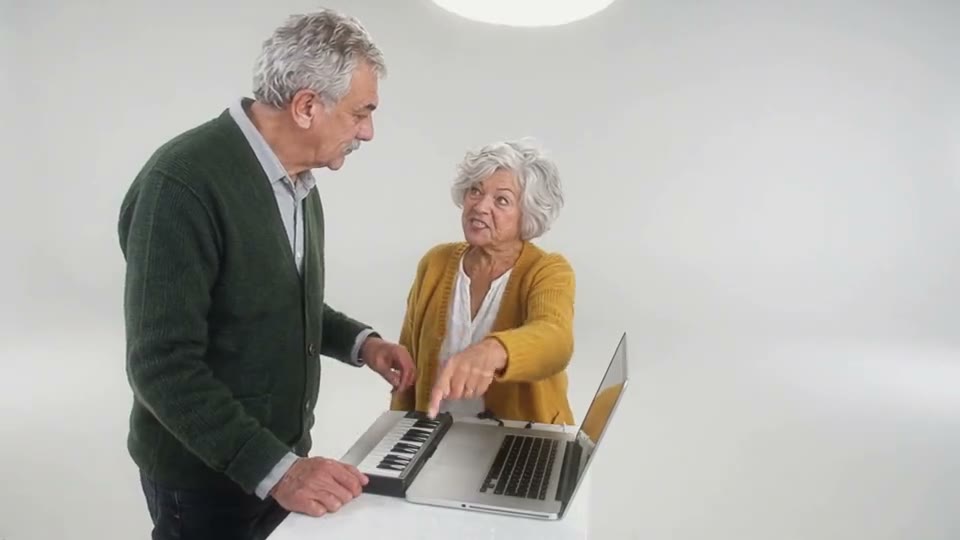
Studio Couple (960 × 540, 14 seconds)
The keyboard establishes which person starts the exchange. Use that shot to decide how long to wait before showing the partner. For your opening, look for the keyboard player setting the rhythm. Put your own source beside the preview at phone width and check the keyboard edge and the two screen positions. If the main detail is already hard to pick out in a still, compare another source or a preview with more separation before generating.
Owner and Dog (960 × 540, 20 seconds)
The owner-and-dog pairing works as a contrast in reactions. Let the pet's response follow the beat instead of matching every human movement. To plan the partner answering with a nod, check the frames just before and after the corresponding movement. Note which object or part of the subject first approaches the crop. Keep the last usable frame on either side as a potential trim point.
Grandparents (960 × 540, 20 seconds)
For a grandparents version, use an unmistakable lead shot and add a short, separately recorded reaction from the other person. Work backward from a return to the keyboard. Find a frame that could serve as the cover or the start of the next shot. Check it at the intended viewing size. If the important detail disappears there, test the crop in the edit first.
Prepare two references as separate shots
For the player, use a waist-up photo with wrists clear of sleeves or furniture. For the partner, keep shoulders and hands visible for the reaction. The current trend editor takes one starting image. To feature two specific people, make two separate clips using their approved photos and intercut the reactions in an editor.
Plan the cut before making the shots
Draw three boxes in a note and label them opening, reply and ending. For each one, write whose shot it is, where that person looks and what information it adds. You can mix a generated lead, a real reaction shot you have permission to use and a plain card. The three boxes give you a way to deliver the idea even when a single generated scene cannot keep all the performers separate.
For a kitchen version, shoot the keyboard player from the front left and the listener from the front right, at the same height. Put the keyboard edge in the first shot and keep it out of the reply. Play the cuts in sequence without a beat track. The two eye lines should establish the exchange before you add music.
For this scene, make the keyboard edge and the two screen positions your first check. Open the file at the same width as your draft and see which part of that detail remains clear. If the sample and your source make that check difficult, try separate takes with opposite eye lines. Choose material you have permission to use for the finished audience. With two people in an edit, approve the sources separately and identify which shot introduces each person.
Build the handoff as three shots
- Open with the keyboard already visible. Give the player enough room below the elbows, then preview when the other performer first enters their space.
- Make the player’s take from an approved portrait with a straight wrist line. Keep the body at a slight angle to the keyboard and give the fingers a simple repeated action.
- For the second shot, choose a photo with the partner looking toward the player’s screen position. Use a short nod or shoulder move as the response. A real reaction clip works if the partner prefers to appear as themselves.
- Return to the keyboard to close the joke. Cut on a nod or on the beat and check that the keys are in roughly the same place when you come back.
Two briefs you can paste into your edit notes
Use these as shot notes. For a generation, carry over the part that describes one visible action and match it to the scene already selected. Keep your text cards, edit points and soundtrack on separate tracks. This makes it easy to compare a tighter cut or a different ending without asking the model to rebuild material that already works.
First pass
Open with the keyboard player on screen left. Cut to a listener looking left and nodding once. Return to the keyboard when the player lowers their eyes.
Put the first shot and its reply next to each other on the timeline. Watch until you can tell who is acting and what the other shot adds. When you have a clear sequence, bring in a line of text or the permitted audio. Set the picture rhythm first so there is room to reposition the caption later.
One focused revision
Keep the keyboard edge in the opening shot. Use a brief shoulder reaction for the reply and hold the last note under the cut back to the player.
When two people overlap or trade identities, build a second draft around separate takes with opposite eye lines. Keep the strongest opening. Cut to a separate response or a simple end frame where the original action stops being useful. Play both drafts side by side and see which one would make sense to someone who never saw the example.
Cut on a gesture you can match
A head nod is easier to connect across two clips than a rapid hand change. Start with the keyboard established in frame, cut to the partner at the next nod, and return to the player for the payoff. Check the player’s wrists before adding sound you have permission to use.
Try a two-shot duet with a keyboard player on the left and a partner reacting on the right. Use opposite eye lines when you choose the portraits. Play both takes without sound and cut where the player looks up, so the partner’s reaction has a clear cause.
What to check at the opening, action and ending
Before the action
Use the keyboard player setting the rhythm to check the keyboard edge and the two screen positions. Compare the generated frame with your source at the same viewing size. Check that the feature you care about is visible before the subject turns, the camera moves or a prop enters. If it is already missing, work on the input or framing first. A later adjustment has more to build on when the opening already looks right.
At the main beat
Around the partner answering with a nod, watch once with the picture filling the intended screen and once with a wider crop. If two people overlap or trade identities, try separate takes with opposite eye lines. Mark the end of the useful action and see if the next shot still follows naturally. An edit can solve a timing or framing problem while preserving a performance that already works.
After the move
Find a return to the keyboard and decide whether it is a usable final frame or a cut point. Play the full clip at normal speed with the sound muted, then turn the sound back on and play it again. The first pass tells you whether the picture explains the action. The second pass lets you hear whether music or dialogue arrives early enough to make sense without masking the reply. If an action only looks awkward when stepped through frame by frame, judge it in the actual export before rebuilding the shot.
Check the quote and prepare the finished cut
Open the Alors On Danse editor, choose the actual scene and settings, and read the quote shown before submitting. You can check Pavo AI Video pricing for plan details. After submission, use the task state to find the result. Review a completed take before starting another one. If you do need another attempt, write down the one change you are testing.
Keep a copy of the clean file, then make a posting or delivery version. Add any date, reply action or dedication as text you can move independently. Preview it on the destination screen. If the message has to travel outside the video as well, send the relevant details in the accompanying text so viewers can find them after playback.
Give the exported file one last check for the keyboard edge and the two screen positions. If the shot needs another pass, keep the exported baseline so the next change is easy to judge. For a separate worked example or a more focused workflow, read Use a Frame From Your Own Video to Start an AI Clip.
Common questions
Can the example place both uploaded people in the same render?
The trend tool currently uses one starting photo. A duo example is useful as a reference for blocking and timing. For two specific people, use their approved photos in separate renders or combine one generated shot with one recorded reaction.
What should I check at the keys?
Watch the wrist and the space between both hands. If a key row bends or a sleeve covers the fingers, use a shorter keyboard cut and let the partner’s reaction carry the next beat.