
Post a Hotel Lobby AI Clip on TikTok, Reels or Shorts
Keep the mic handoff readable in a phone crop, prepare a caption, and check music and AI disclosure before publishing.
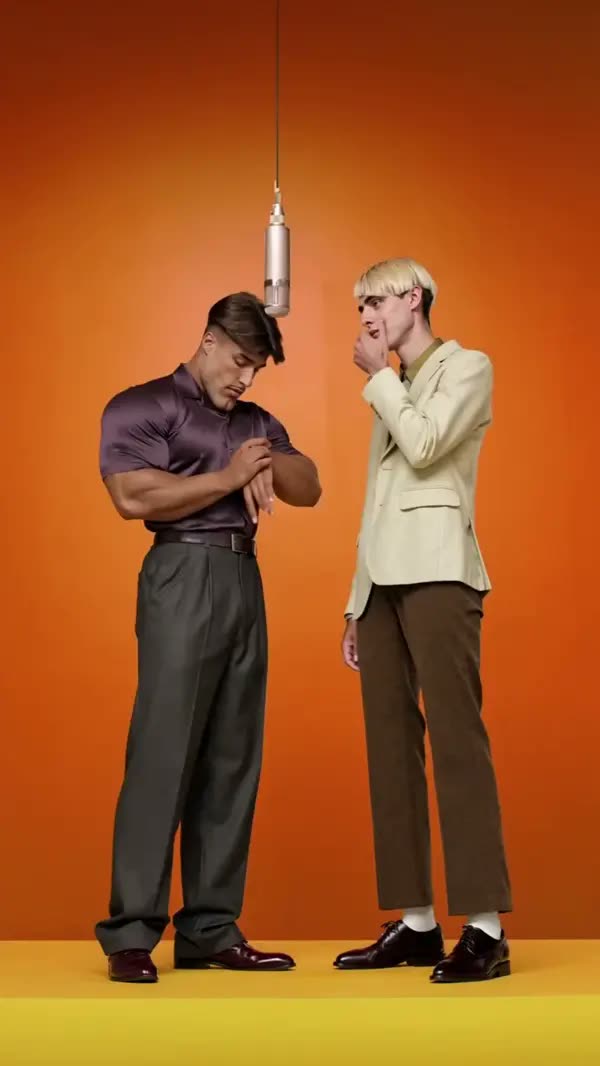
Frame the handoff for a phone
Start from a short take in Hotel Lobby AI and inspect the widest point where the two performers share the frame. If a vertical center crop loses the second person or the mic, keep the wider take inside a vertical canvas and use the unused space for short context. Review it with the app’s preview overlay before publishing.
Compare the example clips before you generate
Open the Hotel Lobby examples and scrub through the clips at the approximate size your audience will see. Take a still at the opening, one at the handoff or gesture, and one near the end. Those three stills make a more useful editing plan than a cover image. The dimensions and times below describe the preview files.
Microphone Duet (600 × 1066, 30 seconds)
Stop on the hanging microphone and test whether the central crop can fit the important mouth and the mic at the same time. For your opening, look for the booth and first visible face on a phone screen. Put your own source beside the preview at phone width and check the mic, the lead’s mouth and safe caption space. If the main detail is already hard to pick out in a still, compare another source or a preview with more separation before generating.
White Tee Swap (540 × 1174, 11 seconds)
Use the white shirt as a cue when comparing tighter and wider crops. Keep any on-screen text away from that cue. To plan the mic handoff under app overlays, check the frames just before and after the corresponding movement. Note which object or part of the subject first approaches the crop. Keep the last usable frame on either side as a potential trim point.
Stripes and Sundress (960 × 716, 10 seconds)
Striped tops make it easier to follow a reply across cuts. Check the second performer before selecting a cover from the first. Work backward from a clean caption and disclosure check before posting. Find a frame that could serve as the cover or the start of the next shot. Check it at the intended viewing size. If the important detail disappears there, test the crop in the edit first.
Build one caption around the duo
Name the relationship that makes the performance funny, such as two coworkers finishing the same shift. Place the caption where it does not sit over either face. Play the exported clip on mute once. If the handoff is unclear without sound, let the opening shot run a little longer instead of adding a second paragraph.
Build the phone edit around the visible action
Set up a draft at the size you intend to publish. Play it once with the destination app’s controls in mind. A face can survive a center crop while the hand or prop that explains the scene falls underneath the caption or outside the frame. Put text and graphics on separate layers so you can move them without rebuilding the video. Keep a clean export in addition to the posting draft.
Duplicate the timeline and try one edge-to-edge crop and one wider picture with room above or below it. In the tight version, stop on the microphone handoff. If the audience loses the mouth or other performer, the wider layout earns its space. Put the caption over the spare background and watch again with sound off.
For this scene, make the mic, the lead’s mouth and safe caption space your first check. Open the file at the same width as your draft and see which part of that detail remains clear. If the sample and your source make that check difficult, try a wider inset with text in unused vertical space. Choose material you have permission to use for the finished audience. With two people in an edit, approve the sources separately and identify which shot introduces each person.
Make a post-ready version from one export
- Mark the first recognizable face, the mic handoff and the last clean reaction in the export. Treat those as the frames your crop needs to preserve.
- Try a vertical crop and a wider inset. Put the caption outside the mic’s path and compare both drafts with platform controls visible at the top and bottom.
- Play the post on mute before choosing audio. Let the first look or gesture establish why the two performers belong together. Check that captions remain legible in the widest shot.
- Save a clean export, add permitted audio for each destination and review its AI disclosure choices. Preview the complete post again so the sound and crop do not change the handoff.
Two briefs you can paste into your edit notes
Use these as shot notes. For a generation, carry over the part that describes one visible action and match it to the scene already selected. Keep your text cards, edit points and soundtrack on separate tracks. This makes it easy to compare a tighter cut or a different ending without asking the model to rebuild material that already works.
First pass
Keep the lead and hanging mic clear in the opening phone crop. Widen the picture for the handoff and put the caption in the spare space.
Put the first shot and its reply next to each other on the timeline. Watch until you can tell who is acting and what the other shot adds. When you have a clear sequence, bring in a line of text or the permitted audio. Set the picture rhythm first so there is room to reposition the caption later.
One focused revision
Preview the edit with controls overlaid. Move the text before cropping further and keep the second performer's face in view through the reply.
When a tall crop removes the mic or second performer, build a second draft around a wider inset with text in unused vertical space. Keep the strongest opening. Cut to a separate response or a simple end frame where the original action stops being useful. Play both drafts side by side and see which one would make sense to someone who never saw the example.
Use each platform’s own disclosure
Keep a clean export and add a track you can use in the destination app. Check AI disclosure when the edit makes real people look as if they performed a scene they did not. Review the current guidance for TikTok, Instagram, and YouTube.
Try two draft crops from the same export. Put the first around the lead, and keep the entire booth in the second. Watch the handoff with the platform’s controls visible, then use the version where the second performer and hanging mic remain legible.
What to check at the opening, action and ending
Before the action
Use the booth and first visible face on a phone screen to check the mic, the lead’s mouth and safe caption space. Compare the generated frame with your source at the same viewing size. Check that the feature you care about is visible before the subject turns, the camera moves or a prop enters. If it is already missing, work on the input or framing first. A later adjustment has more to build on when the opening already looks right.
At the main beat
Around the mic handoff under app overlays, watch once with the picture filling the intended screen and once with a wider crop. If a tall crop removes the mic or second performer, try a wider inset with text in unused vertical space. Mark the end of the useful action and see if the next shot still follows naturally. An edit can solve a timing or framing problem while preserving a performance that already works.
After the move
Find a clean caption and disclosure check before posting and decide whether it is a usable final frame or a cut point. Play the full clip at normal speed with the sound muted, then turn the sound back on and play it again. The first pass tells you whether the picture explains the action. The second pass lets you hear whether music or dialogue arrives early enough to make sense without masking the reply. If an action only looks awkward when stepped through frame by frame, judge it in the actual export before rebuilding the shot.
Check the quote and prepare the finished cut
Open the Hotel Lobby editor, choose the actual scene and settings, and read the quote shown before submitting. You can check Pavo AI Video pricing for plan details. After submission, use the task state to find the result. Review a completed take before starting another one. If you do need another attempt, write down the one change you are testing.
Keep a copy of the clean file, then make a posting or delivery version. Add any date, reply action or dedication as text you can move independently. Preview it on the destination screen. If the message has to travel outside the video as well, send the relevant details in the accompanying text so viewers can find them after playback.
Give the exported file one last check for the mic, the lead’s mouth and safe caption space. If the shot needs another pass, keep the exported baseline so the next change is easy to judge. For a separate worked example or a more focused workflow, read Make a Hotel Lobby AI Video From Your Photo.
Common questions
Where should the caption go in a vertical version?
Keep it outside the faces and any part of the shot where the mic changes hands. If both sides of the booth are busy, a short title before the performance or a lower caption in unused space can be clearer.
Should I reuse the same audio on every app?
Keep the clean visual edit as your master. Then check what audio you can publish on each destination and preview any new timing before posting. Music use and AI disclosure are separate checks.